




Are you an Apple user looking for an easy IPTV setup guide for iPhone, iPad, or Apple TV? With an IPTV Stremio subscription, you can enjoy live TV, movies, sports, and on-demand entertainment directly on your Apple devices.
This complete IPTV guide will show you how to install and configure IPTV Smarters Pro for a quick and easy IPTV Stremio subscription setup.
What is IPTV?
IPTV (Internet Protocol Television) is a modern streaming solution that delivers TV content over the internet instead of traditional cable or satellite services. An IPTV Stremio subscription allows users to access thousands of live channels, movies, TV shows, sports, and premium content on multiple devices.
With IPTV Smarters Pro, setting up your IPTV service on Apple devices becomes simple and beginner-friendly.
Step 1: Download IPTV Smarters Pro from the App Store

The first step in this IPTV setup guide is downloading the app.
Follow these instructions:
- Open the App Store on your iPhone, iPad, or Apple TV
- Search for IPTV Smarters Pro
- Find the app in the search results
- Tap Get to install the application
- Wait for installation to finish
Once installed, continue with your IPTV Stremio subscription setup.
Step 2: IPTV Stremio Subscription Setup
After installing the app:
- Open IPTV Smarters Pro
- Accept the Terms of Use
- Choose your preferred login method
- Enter the username, password, and server URL provided with your IPTV Stremio subscription
- Tap Add User
After entering the correct information, your IPTV channels and content will automatically load.
Step 3: Explore the IPTV Interface
Once your IPTV setup is complete, you'll access the IPTV Smarters dashboard.
Available sections include:
Live TV – Stream live channels instantly
Movies – Watch on-demand movies
Series – Access TV series and episodes
Catch Up – View previously aired content if supported
EPG Guide – Use the Electronic Program Guide to view schedules
This organized layout makes your IPTV Stremio subscription setup simple and easy to navigate.
Step 4: Customize Your IPTV Experience
IPTV Smarters Pro allows users to personalize their channel list.
To customize channels:
- Tap the menu icon in the upper-left corner
- Open Settings
- Select Manage Channels
- Organize categories and favorite channels
Customizing your IPTV setup improves usability and creates a better streaming experience.
Step 5: Enjoy Your IPTV Stremio Subscription
Your IPTV setup guide is now complete.
You can start enjoying:
- Live TV channels
- Sports content
- Movies and TV shows
- HD and 4K streaming
- On-demand entertainment
Pro Tip
For improved privacy and security while streaming, consider using a VPN with your IPTV Stremio subscription.
Conclusion
Setting up an IPTV Stremio subscription on iPhone, iPad, or Apple TV is fast and simple. By following this IPTV guide, you can complete your IPTV Stremio subscription setup in just a few minutes and enjoy premium streaming on your Apple devices.
This version naturally strengthens SEO around:
- IPTV setup guide
- IPTV Stremio subscription
- IPTV Stremio subscription setup
- IPTV guide
- Apple IPTV setup
- IPTV on iPhone and Apple TV
Step 1: Download IPTV Smarters Pro from the App Store
- Open the App Store on your Apple device.
- Use the search bar to find "IPTV Smarters Pro."
- Locate the app in the search results.
- Tap the "Get" button to download and install the app.
1: From the home screen of your device, hover over the Find option.
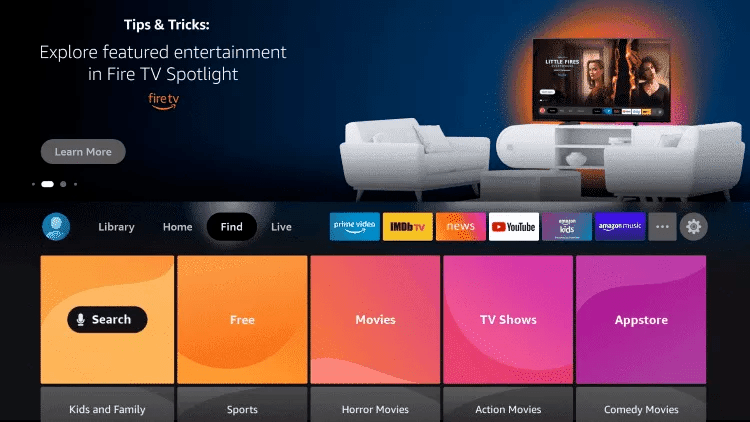
2. Click Search.
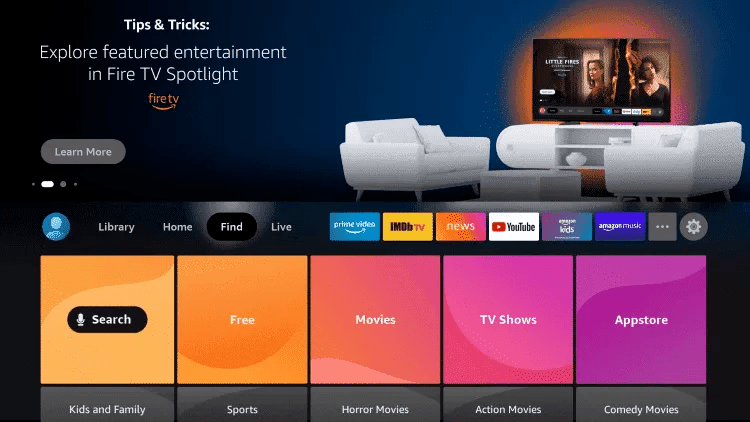
3. Search for and select Downloader.
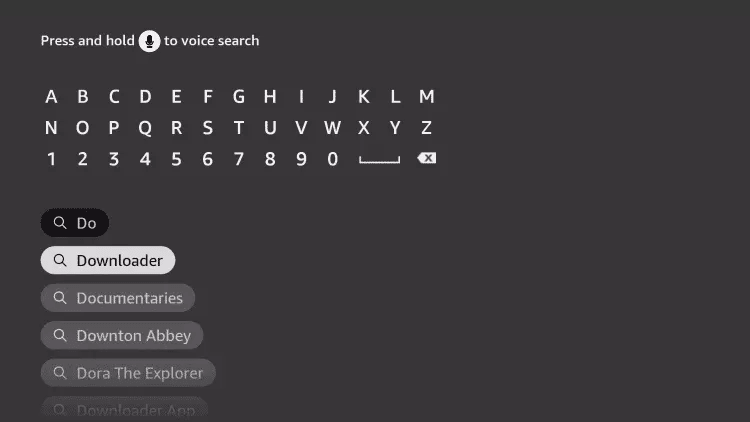
4. Choose the Downloader app.
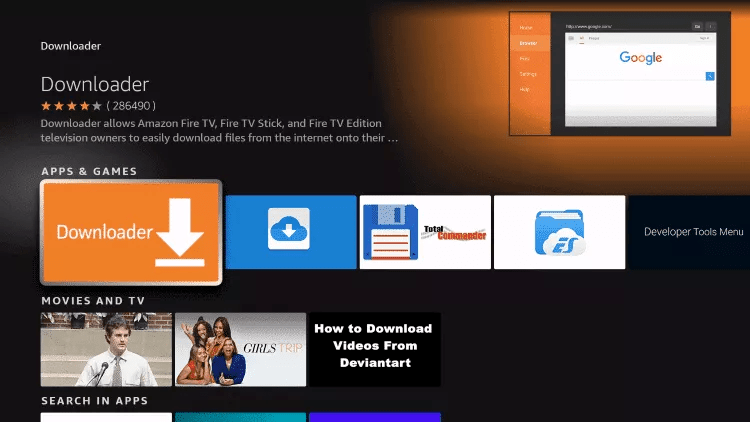
5. Click Download.
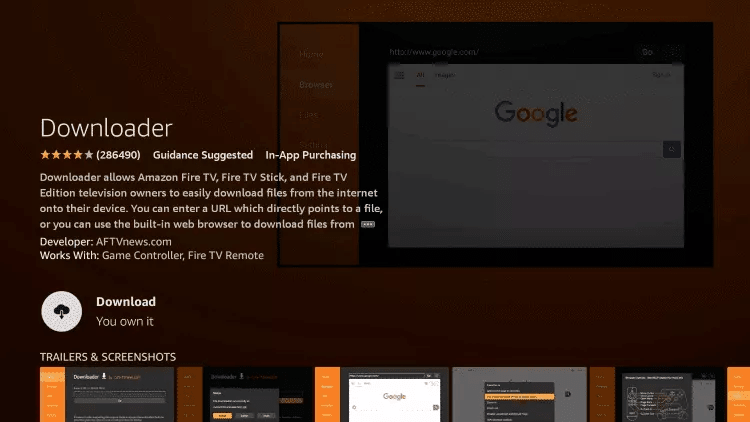
6. Once the app finishes installing click Open.
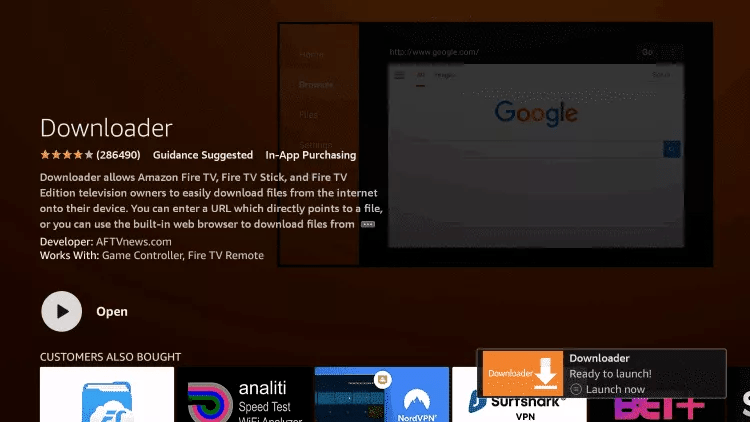
7. Return to the home screen and open Settings.
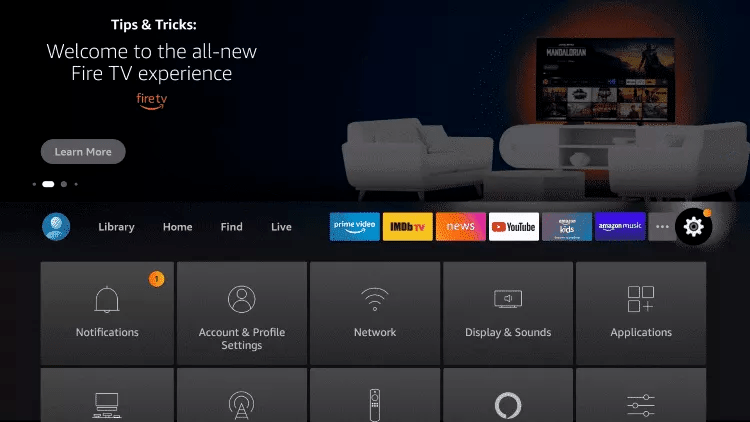
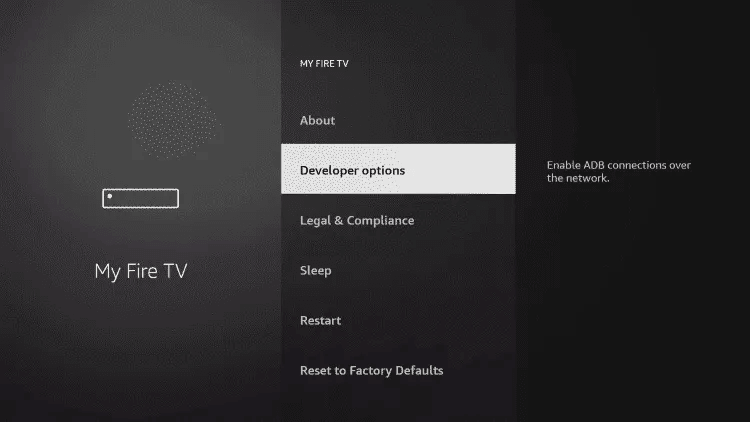
8. Click My Fire TV.

9. Choose Developer options.
10. Click Install unknown apps.

11. Find the Downloader app and click it.

12. This will turn Unknown Sources to On for the Downloader app. This will enable side-loading on your device.
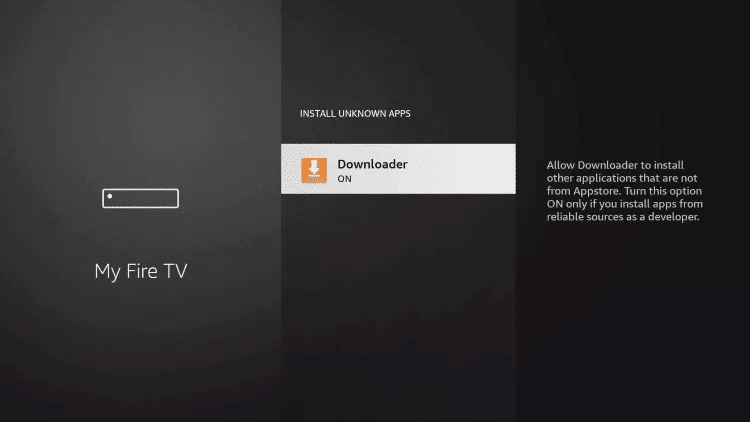
13. Launch Downloader.
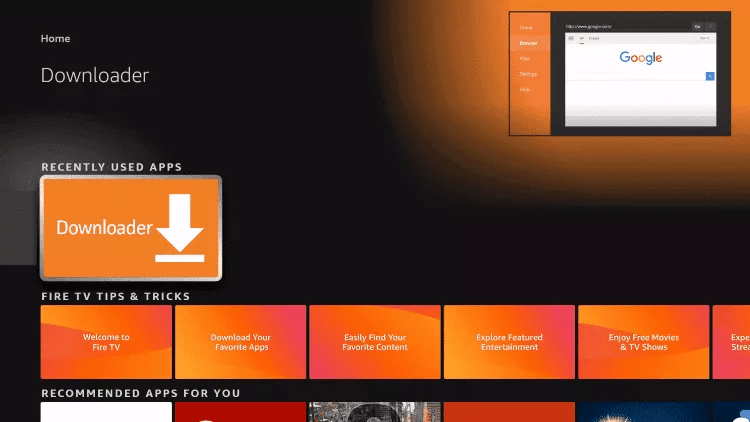
14. Click Allow.

15. Click OK.

16. Type the following URL exactly as shown here: https://www.iptvsmarters.com/smarters.apk
and click Go.

17. Wait for file to download.

18. Click Install.
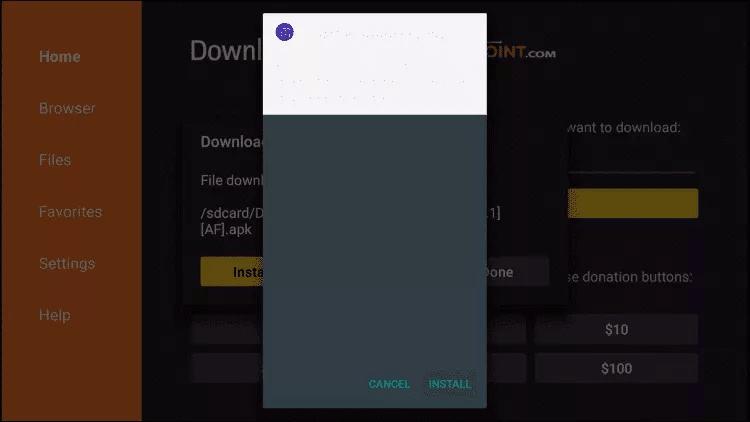
19. Click Done.
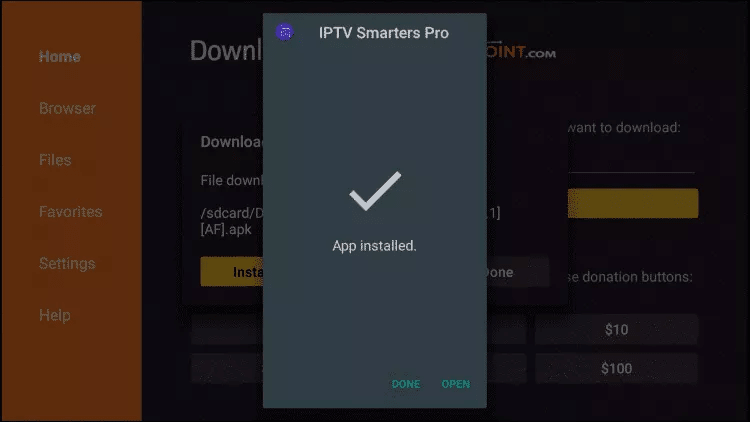
20. Open IPTV smarters then select Login with Xtream codes api.
21. Enter the login details that we sent you via Whatsapp or Email or Chat
FOR TIVIMATE
1. Type the following URL exactly as shown here: https://tivimates.com/tiviapk
and click Go.
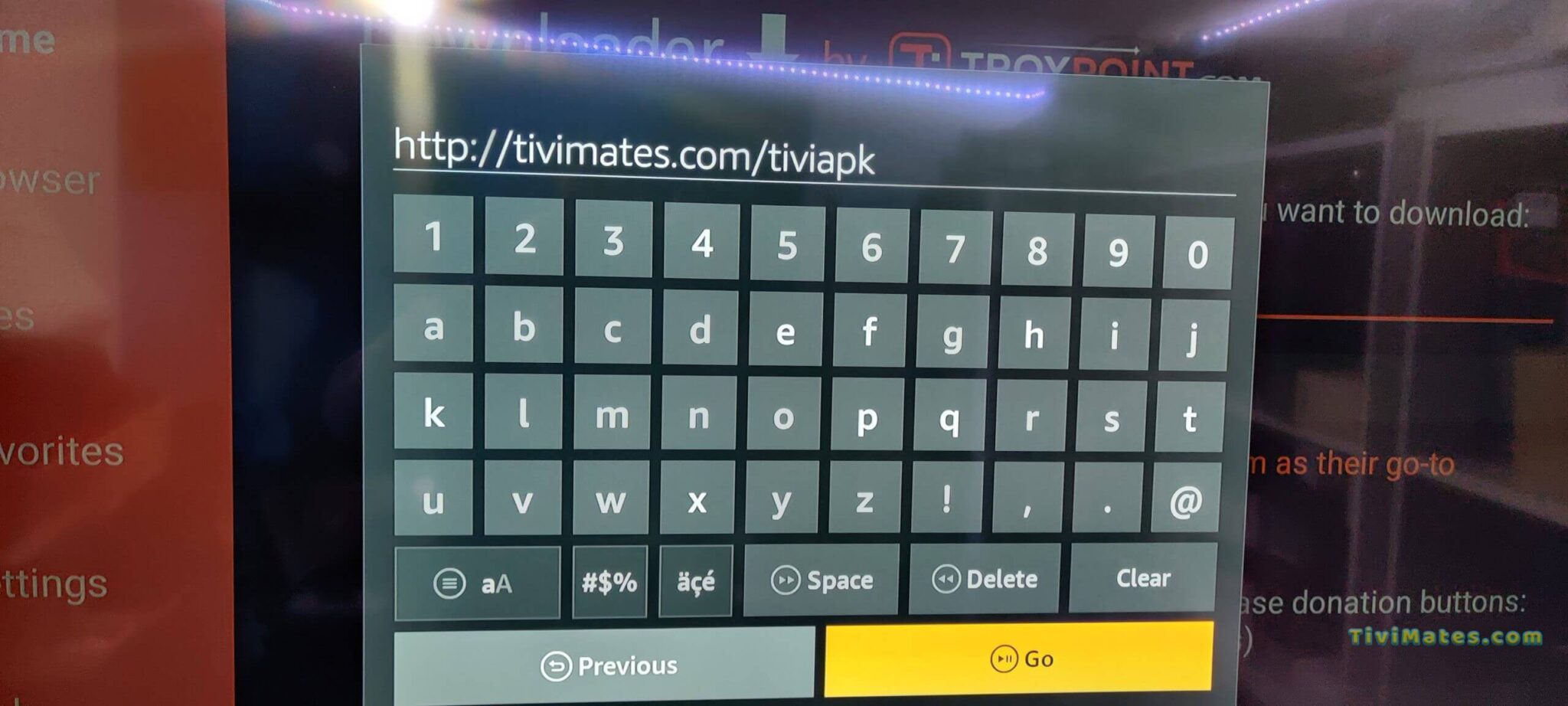
2. Wait for file to download.
Wait for the file download to finish
3. Click Install and once the installation is completed. You can open the app.
4. Click “Add Playlist” then choose “Xtream codes“
5. Enter the login details that we sent you via Whatsapp or Email or Chat
1: From the home screen of your device, hover over the Find option.
2. Click Search.
3. Search for and select Downloader.
4. Choose the Downloader app.
5. Click Download.
6. Once the app finishes installing click Open.
7. Return to the home screen and open Settings.
8. Click My Fire TV.
9. Choose Developer options.
If you don’t see “Developer Options” button, Here is the trick –> watch this video : https://bit.ly/3jmoPZf
10. Click Install unknown apps.
11. Find the Downloader app and click it.
12. This will turn Unknown Sources to On for the Downloader app. This will enable side-loading on your device.
13. Launch Downloader.
14. Click Allow.
15. Click OK.
16. Type the following URL exactly as shown here: https://tivimates.com/tiviapk
and click Go.
17. Wait for file to download.
Wait for the file download to finish
18. Click Install and once the installation is completed. You can open the app.
19. Click “Add Playlist” then choose “Xtream codes“
19. Enter the login details that we sent you via Whatsapp or Email or Chat
Step 1: You can download SetIPTV / NetIPTV / Smart IPTV from your TV store on Samsung, LG …
Step 2: After the installation, open the app the you will find MAC Address on screen
EX :

Step 3: Send us the MAC address via Whatsapp/Email/Live Chat
Step 4: After few minutes, restart/reboot your TV and Open the app Done
Are you looking to enjoy IPTV services on your computer running Windows or macOS? Look no further than IPTV Smarters Pro, a popular IPTV player that offers a user-friendly interface and seamless streaming experience. In this guide, we'll walk you through the simple steps to install and set up IPTV Smarters Pro on your PC or Mac.
Step 1: Visit the IPTV Smarters Pro Website
Start by opening your preferred web browser on your computer.
- Visit the IPTV Smarters Pro website by going to IPTV Smarters Pro.
Step 2: Download the App
Once on the website, navigate to the "Downloads" or "Download Now" section.
Choose the appropriate version of the app for your operating system. IPTV Smarters Pro provides dedicated apps for both Windows and macOS. Click on the download link for your chosen version.
Step 3: Install and Configure
After the download is complete, open the downloaded file to initiate the installation process.
Follow the on-screen instructions to install the IPTV Smarters Pro app on your computer.
Step 4: Enter Subscription Details

Launch the IPTV Smarters Pro app after installation.
Upon opening the app, you'll be prompted to enter your IPTV subscription details. This typically includes a username, password, and the URL provided by your IPTV service provider.
Enter this information accurately to access your IPTV content.
Step 5: Explore and Enjoy

With your subscription details entered, you now have access to your favorite live TV channels, on-demand content, and other features within the IPTV Smarters Pro app.
Take some time to explore the user-friendly interface, browse channels, and enjoy your IPTV service on your Windows or macOS computer.
Installing IPTV Smarters Pro on your computer opens up a world of entertainment possibilities, allowing you to watch your favorite content without the need for additional hardware. Whether you're running Windows or macOS, this versatile IPTV player is designed to enhance your viewing experience.
STB Emulator Setup Instructions:
- Download ‘STB Emulator’ from the Google Play Store here.
- Install and Load the ‘STB Emulator’ app and you will see your ‘MAC address’ on screen.
- Tap near the ‘Top right corner’ and then click ‘Settings’ – the 4th icon from the right.
- Tap ‘Profiles’.
- Tap ‘Test portal’ to modify the existing profile or ‘Add profile’ to start a new one.
- Tap ‘STB Model’.
- Tap ‘MAG 250’ or whichever STB you wish to emulate.
- Tap ‘Portal settings’.
- Enter your ‘Portal URL’ (Check your activation e-mail) and click OK.
- Now tap ‘Screen Resolution’.
- Choose ‘1280×720’ (You can choose higher with internet speed 16+ Mbps).
- Exit the app and restart.
- You will now see your channel list.
Troubleshooting STB Emulator
If you have any problems viewing the Channels please follow this recommended fix:
Restart your App, Device/Box, and Wi-Fi Router.
In case you are facing any issues, please contact our support team on WhatsApp and they will help you set the subscription in your APP.
- Go to: Settings—> System Settings —> Servers—>Portals
- Set Portal 1: IPTV Shop
- Set Portal 1 URL ( see your E-mail )
- Set Portal 2 Name leave this empty add this only If you order the second subscription
- Set Portal 2 URL leave this empty add this only If you order the second subscription
- Save everything
- Reboot device
- After the box is restarted, wait until the TV screen shows the channels.
In case you are facing any issues, please contact our support team on WhatsApp and they will help you set the subscription in your APP.
